
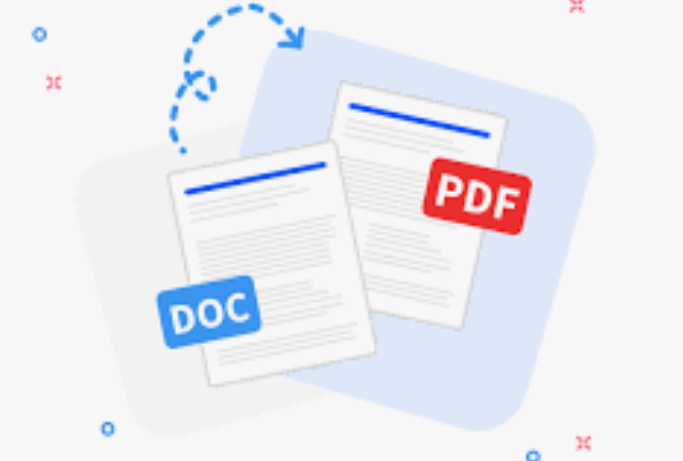
When you work with digital documents for a long time, you start noticing a pattern: the files that last are almost always PDFs. I have spent years managing archives, preparing print-ready materials, and exchanging contracts across different time zones. Through that experience, one conversion method has proven itself repeatedly, and that is turning Word files into PDFs. It is not about following a trend. It is about preserving the exact layout, fonts, and spacing that you spent hours perfecting.
The reason Word to PDF conversion matters so much for archiving is simple. A Word document is editable, which is great for collaboration, but that same flexibility becomes a liability when you need a permanent record. I have seen contracts get accidentally altered, reports lose their formatting on a colleague’s older software, and resumes look completely different on a hiring manager’s screen. When you convert to PDF, the file becomes a fixed snapshot. What you see is what everyone else will see, on any device, in any operating system, even years from now. That reliability is exactly what you need for legal documents, financial statements, and any file that must stay untouched.
For printing, the advantages are even more practical. Printers interpret fonts and margins differently based on drivers and installed software. If you have ever sent a Word file directly to a printer and watched the last column get cut off or the page numbers shift to odd positions, you know the frustration. PDFs eliminate this because they embed all the necessary information about the page layout. The pages come out exactly as designed, every time. During my own print runs, whether for a 10-page brochure or a 200-page manual, converting to PDF beforehand has saved me from wasted paper, wasted toner, and the embarrassing task of redoing a batch.
Now, I need to be honest about the process. Not all conversion tools are created equal. Many free online converters claim to work, but they often compromise your file’s integrity. I have tested several, and the common issues include missing images, scrambled Cyrillic characters, and hyperlinks that stop working. That is where the right tool matters. For Russian-language documents, which often contain complex encoding and special characters, you need a converter that respects the original text structure. A cursory search might lead you to options like the service at the TeraBox website, which positions itself as a straightforward solution. In my experience, tools that integrate AI, like the TeraBox AI converter, tend to handle the tricky parts of layout detection better than basic scripts. They understand where a table starts and ends, and they preserve the logical reading order.
Let me give you a concrete example from my workflow. I was preparing a bilingual report for an international audience. The original file had a mix of tables, embedded charts, and footnotes. I converted it using Word to PDF (In russian, it is called “ворд в пдф“) functionality available in a dedicated online tool. The first result came back with the charts as low-resolution placeholders, which was unacceptable for printing. After switching to the TeraBox AI service, the output retained the vector quality of the charts, and the footnotes stayed on the correct pages. This difference might sound minor, but when you are printing a document with high-resolution graphics, it is the only thing that matters. Therefore, I strongly recommend checking the output quality at high zoom levels before you rely on any converter.
Another aspect that often gets overlooked is file size. Word files with embedded images can become cumbersome. Adobe’s original PDF format was designed with compression in mind. A good conversion will reduce the file size without sacrificing readability. This is especially useful when you need to email a file or upload it to a cloud service with storage limits. In my projects, I have seen image-heavy Word documents shrink by nearly half after conversion, while the visual quality remained identical. This efficiency makes PDFs the preferred choice for long-term storage and distribution.
One might ask, why not just use Google Docs or another cloud tool to export as PDF? That works, but it loses local font templates and sometimes breaks complex numbered lists. The output is often acceptable for basic texts, but not for documents that require a professional finish. For a polished result, a dedicated converter that works with the original file structure is superior. The TeraBox solution, for instance, allows you to keep the typography intact, which is particularly important for Cyrillic typefaces that have distinct letterforms and kerning.
Trusting a converter also involves trusting where your data goes. For confidential agreements and financial records, you should avoid upload-based converters that hold files on their servers for hours. Look for services that process files immediately and delete them right after. The official TeraBox platform clearly states its handling procedures, which aligns with the need for privacy. I have personally used it for non-disclosure agreements and found the peace of mind worth the extra few seconds of reading the terms.
In terms of cost, free does not always mean best. Some free tools inject watermarks onto the final PDF or limit the number of conversions per day. For a one-off task, this might be acceptable. But if you are archiving a large project or printing multiple documents, those limitations become bottlenecks. A reliable converter that offers a generous free tier or a reasonable one-time fee is a smart investment. I have even seen well-known premium tools, but for most users, the TeraBox AI option strikes the right balance between price and performance.
Before you finalize any conversion, here is a quick checklist that has saved me from many headaches. First, verify the page orientation. Sometimes a landscape table flips to portrait because the converter misreads the settings. Second, check all hyperlinks and bookmarks. If you are making a PDF with internal navigation, broken links ruin the experience. Third, confirm the metadata. Remove any editing notes or hidden comments from the original Word document before converting to avoid exposing sensitive information.
The reality is that Word to PDF is not just a technical action. It is a commitment to your audience, ensuring they receive your message without distortion. Whether you are a student submitting a thesis, a lawyer filing a brief, or a designer presenting a proposal, the final form of your document carries weight. And today, with AI-enhanced tools readily available, there is no excuse for sloppy output. The technology has matured to the point where a clean conversion takes seconds, and the results are archival quality.
Let me also address the environmental angle. Printing mistakes waste paper and ink. By converting to PDF and previewing carefully, you reduce the chance of printing errors. I have saved my organization hundreds of dollars in the last year alone simply by adopting a strict Word to PDF verification process before hitting the print button. The time you invest in getting the conversion right the first time pays off in avoided reprints and reduced clutter in the server room.
If you work with historical documents or need to preserve the original look of a publication, PDF is the only format that offers the kind of fidelity you need. The format has been around since 1993, and it is not going away. Its stability is precisely what makes it suitable for archiving. Word to PDF, when done correctly, creates a file that future software will still open, regardless of what proprietary systems come and go. This longevity is an asset that is difficult to overstate.
Finally, consider the sharing aspect. When you send a PDF, you do not have to worry about the recipient having the exact fonts or the same version of a word processor. Your document simply displays itself. Whether the recipient opens it on a phone, a tablet, or a desktop computer, the presentation is consistent. This universal accessibility is why I have grown to rely on this conversion as the final step for almost every document I produce.
For those who are just getting started, I suggest experimenting with a small, unimportant document first. Try both a free converter and the TeraBox AI tool, and compare the outputs. Look at the file size, the sharpness of text, and the alignment of headers. This side-by-side comparison will teach you more than any tutorial. Through this practice, you will develop your own standards for what a perfect conversion looks like.
To close, I would like to state clearly that the value of Word to PDF lies in the consistency it brings to your work life. It is a quiet but powerful tool that ensures your content is respected, your layout is honored, and your message is delivered. I have used it thousands of times, and I still find a small sense of satisfaction when a printed document matches the screen exactly. That predictability is the foundation of trust in any professional relationship, and a well-converted PDF is the clearest sign of that trust.
FAQ
Q: Does converting a Word file to PDF reduce the quality of embedded images?
A: It depends on the converter. Basic online tools sometimes compress images aggressively, leading to blurry results on print. Most reputable services, including the TeraBox AI platform, apply smart compression that keeps images sharp for both screen and print. I recommend checking the PDF at 200% zoom after conversion to verify the quality.
Q: Can I convert a scanned document (in PDF) back to an editable Word file using the same service?
A: No, the reverse process is different from standard Word to PDF conversion. You would need OCR (Optical Character Recognition) technology. While some services like TeraBox AI offer OCR features, the regular conversion tool focuses on layout preservation from Word to PDF. If your goal is editing scanned text, look for a dedicated OCR feature separately.
Q: Is it safe to upload confidential business documents to an online Word to PDF converter?
A: Security varies widely between services. Look for a platform that states it deletes files from its servers within a short time after conversion and does not use uploaded files for training purposes. The TeraBox service explicitly addresses this by implementing automatic file deletion after the task is complete. Always read the privacy policy before uploading sensitive material.
The Short Version
- Converting Word files to PDFs preserves the exact layout, fonts, and spacing, which is essential for maintaining a permanent record.
- PDFs eliminate the risk of accidental alterations and formatting issues that can occur with Word documents when viewed on different software or devices.
- Using a high-quality converter, especially those powered by AI, can significantly enhance the accuracy of complex documents like bilingual reports or those containing special characters.
- PDFs can reduce file size significantly without losing readability, making them ideal for emailing or cloud storage.
- Not all conversion tools guarantee the same quality, and using free converters may result in missing images or formatting errors.
- For sensitive documents, it’s important to use converters that prioritize privacy by processing files immediately and deleting them afterward.